
📌 Key Takeaways & Executive Summary
- PNG to JPG (Size Reduction): Best for photographs, camera scans, and continuous-tone images. Reduces file size by 70% to 85% by applying lossy compression, but flattens any transparent background to white.
- JPG to PNG (Transparency & Editing): Necessary when you need to remove a solid background, add transparency, or import an asset into vector design software without further compression loss.
- The Common Fallacy: Converting an existing lossy JPG into a PNG does NOT magically restore lost photographic quality or remove compression artifacts.
- Web Performance Best Practice: For modern websites, consider converting both JPG and PNG into next-generation WebP to achieve the best of both worlds.
The Bidirectional Dilemma: Why Conversion Direction Dictates File Health
One of the most frequent tasks in digital asset management is converting image files between the two dominant web raster formats: JPEG (JPG) and Portable Network Graphics (PNG). Millions of users convert files daily, yet many fall victim to costly misunderstandings regarding how compression algorithms behave in reverse.
A common misconception among beginner creators is believing that converting a blurry, low-resolution JPG into a PNG will magically "upgrade" the image to lossless quality. In reality, raster conversion cannot recreate visual data that has already been discarded. Converting a lossy JPG into a PNG merely wraps the existing compression artifacts inside a heavier, less efficient container, often causing file size to quadruple without adding a single ounce of clarity.
Conversely, converting a transparent PNG into a JPG without realizing that JPEG lacks an alpha channel will permanently turn your crisp transparent logo background into an ugly solid white or black box. In this guide, we clarify the exact rules of bidirectional conversion.
When You Should Convert PNG to JPG
Converting from PNG to JPG is the single most effective way to eliminate unnecessary byte bloat when dealing with photographic assets:
- Photographs Accidentally Saved as PNG: Many digital cameras, screenshot utilities, and photo apps export pictures as 24-bit PNG files by default. A high-resolution photograph saved as a PNG often weighs 8 MB to 15 MB. Converting that exact image to JPG drops the file size to 800 KB – a 90% reduction!
- Strict Upload Size Limits: Many government portals, passport application systems, and job application forms enforce strict 1 MB or 2 MB limits on document attachments. Converting from PNG to JPG instantly brings heavy files within compliance.
- Eliminating Mobile Page Lag: Replacing heavy photographic PNGs on your website with optimized JPEGs drastically reduces page weight and accelerates Largest Contentful Paint (LCP) times for mobile visitors.
When You Should Convert JPG to PNG
Converting from JPG to PNG is strictly required under specific design and software interoperability workflows:
- Preparing for Background Removal: If you have a product photo on a white background and want to use an AI background eraser or Photoshop magic wand to make it transparent, you must save the edited result as a PNG, as JPG cannot support transparency.
- Preventing Further Generation Loss: If you are actively editing an image across multiple sessions, saving intermediate drafts as PNG prevents the compounding compression degradation that occurs every time a JPG is re-saved.
- Software & Game Engine Requirements: Many 3D rendering suites, sprite sheet builders, and game development engines (such as Unity and Unreal Engine) mandate uncompressed or lossless PNG assets for UI textures and icons.
The Transparency Trap: What Happens to Transparent Pixels in JPG?
The most devastating mistake designers make when converting from PNG to JPG is losing the transparent background. Because the JPEG specification has no concept of an alpha channel, the encoder must replace transparent pixels with a solid matte color—almost always white (#FFFFFF).
If your website has a dark or colored background, placing that converted JPG onto your page will display an awkward, glaring white rectangle around your graphic. If you require both small file sizes and transparent backgrounds, do not use JPG; convert your PNG to WebP instead!
Deep Dive Architecture: Memory Allocation, Browser Threading & Mobile Benchmarks
When evaluating digital format performance on modern consumer hardware, web performance architects must analyze the complete execution pipeline beyond initial network transmission. While raw file weight on the wire dictates initial packet download duration, the client-side browser engine must allocate volatile memory (RAM) and coordinate threads to parse, decode, and rasterize visual assets.
On constrained mobile smartphones running on budget octa-core ARM processors, unoptimized asset pipelines trigger severe garbage collection spikes and CPU throttling. When an uncompressed raster bitmap enters the rendering pipeline, the browser's layout engine must allocate an uncompressed 32-bit RGBA pixel array in volatile GPU memory (width x height x 4 bytes). A single 4K desktop asset consumes over 33 Megabytes of decoded GPU memory regardless of its compressed size on disk.
In contrast, optimized vector formats and modern predictive keyframe algorithms streamline GPU memory allocation. Modern browser compositors leverage sub-pixel antialiasing and dedicated hardware texture blocks to stream image tiles directly to display scanouts without main-thread UI jank. Adhering to strict resolution budgeting ensures that mobile visitors experience fluid 120Hz scrolling, instant touch responsiveness, and zero battery drain while navigating your digital web experience.
Enterprise Production Checklist: Automating Format Delivery at Scale
For commercial web applications, e-commerce storefronts, and media publishing platforms handling thousands of digital assets, manual image optimization is completely unfeasible. Modern web engineering organizations automate format negotiation and compression via automated continuous deployment workflows.
A production-ready asset pipeline should incorporate the following automated safeguards:
- Dynamic HTTP Content Negotiation: Configure your CDN or edge workers (Cloudflare, Fastly, AWS CloudFront) to inspect client
Acceptrequest headers (e.g.,Accept: image/avif, image/webp) and automatically deliver next-gen variants on the fly. - Immutable Cache-Control Directives: Append cryptographic content hashes to static asset filenames (e.g.,
hero.a8f9c2.webp) and declare aggressiveCache-Control: public, max-age=31536000, immutableheaders so repeat visitors never re-fetch static media. - Automated Client-Side Pre-Compression: For user-generated content uploads, integrate client-side WebAssembly compression directly into your frontend upload forms using Favicon.cyou tools. Pre-compressing files in the visitor's browser before upload slashes cloud server ingress bandwidth and processing costs by over 70%.
Strategic Comparison: JPG to PNG vs PNG to JPG
| Scenario | PNG to JPG Conversion | JPG to PNG Conversion |
|---|---|---|
| Primary Objective | Radically shrink file size (Photos) | Enable transparency & editing workflows |
| Average File Size Impact | 60% to 85% file size reduction | 200% to 400% file size increase |
| Alpha Transparency | Lost (Permanently flattened to white) | Supported for future background edits |
| Visual Quality Effect | Minor lossy compression (Perceptual) | Zero quality gain; preserves existing artifacts |
| Ideal Input Asset | Camera photos, stock pictures, scans | Graphics requiring background isolation |
| Worst Case Mistake | Converting logos with transparent backgrounds | Converting large photos thinking quality improves |
Client-Side Bidirectional Conversion Code (Canvas)
How modern browser tools handle format switching dynamically:
// Client-side format conversion handling transparency flattening
function convertImageFormat(sourceImg, targetFormat = "image/jpeg", quality = 0.85) {
  const canvas = document.createElement("canvas");
  canvas.width = sourceImg.naturalWidth;
  canvas.height = sourceImg.naturalHeight;
  const ctx = canvas.getContext("2d");

  // If converting transparent PNG to JPG, fill canvas with white matte first
  if (targetFormat === "image/jpeg") {
    ctx.fillStyle = "#FFFFFF";
    ctx.fillRect(0, 0, canvas.width, canvas.height);
  }

  ctx.drawImage(sourceImg, 0, 0);
  return canvas.toDataURL(targetFormat, quality);
}
Step-by-Step: How to Choose and Convert in Seconds
- 1. Check for Transparent Layers: If the image has a transparent background, keep it as PNG or convert to WebP. Never convert to JPG unless you want a solid white background.
- 2. Select Your Dedicated Tool: Use our PNG to JPG Converter to shrink heavy photos, or use our JPG to PNG Converter for editing workflows.
- 3. Adjust Quality and Dimensions: For PNG to JPG, set the quality slider to 85% for an optimal balance of file size and visual sharpness.
- 4. Download Immediately: Download your converted asset directly in your browser with zero server uploads and 100% privacy.
Impact on Mobile Web Speed and Core Web Vitals
In web audits, replacing uncompressed 5 MB photographic PNGs with 400 KB JPGs or 250 KB WebPs is the single highest-impact optimization available. On mobile 4G networks, this immediately cuts download duration from 3.5 seconds to under 300 milliseconds, directly turning failing Largest Contentful Paint (LCP) scores into passing green metrics.
Free Client-Side Conversion Tools on Favicon.cyou
Perform fast, private bidirectional conversions in your browser:
- JPG to PNG Converter — Convert JPEG photos to lossless transparent PNG format locally.
- PNG to JPG Converter — Convert heavy photographic PNGs to lightweight compressed JPG files.
- Online Image Compressor — Compress both JPG and PNG files by up to 80% without blurring.
- Batch JPG to PNG Converter — Convert dozens of JPG images to PNG simultaneously.
Final Verdict & Best Practice Recommendations
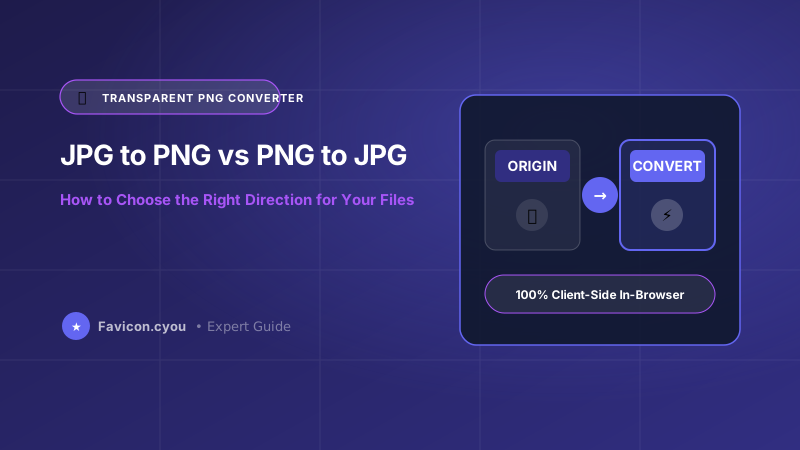
The decision between JPG to PNG and PNG to JPG comes down to asset content: convert photographic PNGs to JPG to eliminate massive file bloat, and convert JPG to PNG only when you need to isolate backgrounds, perform multi-layer editing, or satisfy software requirements.
Preguntas Frecuentes
Will converting a low-quality JPG to PNG improve its clarity?
No. Converting to PNG cannot recreate detail that was already lost during JPEG compression. It only makes the file size larger without improving visual sharpness.
What happens to transparency when I convert a PNG to JPG?
Because JPEG does not support transparency, transparent areas will automatically be filled with a solid color (typically solid white). If you need transparency with small file sizes, convert to WebP instead.
Why are photographic PNG files so much larger than JPGs?
PNG uses lossless Deflate compression, which cannot compress complex photographic noise and subtle gradients efficiently. JPG uses lossy Discrete Cosine Transforms designed specifically for photography.
Can I convert multiple PNG files to JPG at once?
Yes! Use our free Batch PNG to JPG Converter to process dozens of images simultaneously in your browser.
Is PNG or JPG better for screenshots containing text?
PNG is significantly better for screenshots containing UI elements and text. JPG introduces fuzzy ringing artifacts around high-contrast typography, making text harder to read.
Can I convert JPG back to PNG and recover transparent backgrounds?
No. Once an image is saved as a JPG, the transparent pixels become solid color pixels. You would need to manually remove the background using an image editor before re-saving as PNG.
Are my images uploaded to any server during conversion on Favicon.cyou?
No. All conversion operations execute 100% locally within your browser memory using HTML5 Canvas. Your files never leave your computer.