
📌 Key Takeaways & Executive Summary
- JPG format strictly uses 24-bit RGB color without an alpha channel, meaning true transparent backgrounds cannot exist in standard JPEG files.
- Converting JPG to PNG wraps pixel data into a 32-bit RGBA container, enabling pixel-by-pixel transparency and smooth alpha channel gradients.
- Removing background colors requires high-contrast separation between your foreground subject and the background field (such as pure white or green screen).
- Favicon.cyou provides instant, 100% free client-side conversion via our dedicated JPG to PNG Converter with zero file uploads.
The Science of Transparency: Why JPG Cannot Store Transparent Pixels
One of the most frequent frustrations designers, developers, and e-commerce merchants experience is saving a graphic with a transparent background, only to find it exported as a solid white box. To understand why this happens, we must look at how image formats store color data.
The standard JPEG (Joint Photographic Experts Group) format was architected specifically for continuous-tone photography. It operates in the 24-bit RGB color space: 8 bits for Red, 8 bits for Green, and 8 bits for Blue. This architecture allows for 16.7 million distinct color combinations, but it contains zero mathematical provision for an alpha (opacity) channel. When a JPEG encoder encounters transparent areas, it fills the missing pixels with solid matte color—almost always pure white (#FFFFFF).
In contrast, PNG (Portable Network Graphics) supports 32-bit RGBA color. The additional 8 bits represent the Alpha channel, allowing 256 gradations of opacity from 0 (completely invisible) to 255 (completely opaque). This enables complex effects like soft drop shadows, anti-aliased curved typography, and translucent glassmorphism overlays.
How to Convert JPG to PNG with Transparency: Step-by-Step Workflow
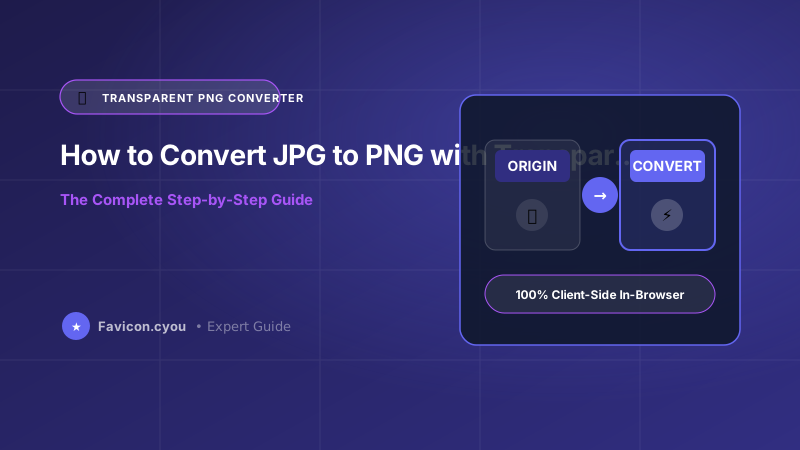
Converting a solid-background JPG into a transparent PNG involves a two-stage process: converting the container format and isolating the background pixels.
- Direct Container Conversion: If you simply need a lossless PNG container ready for graphic editing software, open our free JPG to PNG Converter. Drag and drop your JPG file, and the tool converts the compressed DCT blocks into lossless PNG chunks directly in your browser.
- Contrast Identification: For automatic background removal, the subject should possess strong edge contrast against its background. Solid white studio backdrops, high-key product photography, and vector logos on flat fields yield the cleanest results.
- Color Thresholding and Alpha Masking: Advanced client-side canvas algorithms inspect pixel RGB values. Pixels matching the designated background color within a tolerance threshold (typically 10-25 delta E) have their alpha value set to 0.
- Edge Anti-Aliasing and Defringing: Harsh color cuts produce jagged "halo" edges. Applying an alpha feathering radius of 1-2 pixels blends edge pixels smoothly against any dark or light website background.
- Final PNG Compression: Uncompressed 32-bit PNGs can be quite heavy. Optimize your final graphic using our PNG Compressor to reduce file size by 50-70% while preserving lossless transparency.
Common Mistakes When Converting JPG to PNG
Avoid these common pitfalls when converting images for web and print use:
- Simply Renaming the File Extension: Changing
photo.jpgtophoto.pngdoes not convert the file format. The file remains a 24-bit JPEG with an incorrect file header, causing browser rendering errors and CMS upload failures. - The "White Fringe" Halo Effect: When background removal tools cut white backgrounds without edge defringing, a thin line of light pixels clings to the subject borders. This looks amateurish when placed over dark web pages.
- Ignoring File Weight Inflation: Converting a compressed 80 KB JPG directly into an uncompressed PNG can swell the file size to 800 KB+. Always run the final asset through an Image Compressor before production deployment.
Technical Deep-Dive: Algorithmic Mechanics of How to Convert JPG to PNG with Transparent Background: The Complete Step-by-Step Guide
Mastering digital media workflows requires understanding the low-level computing architectures that govern digital imagery, vector transforms, and document streams. When you process digital assets via How to Convert JPG to PNG with Transparent Background: The Complete Step-by-Step Guide, modern web clients leverage high-performance browser APIs like the HTML5 Canvas 2D Context, ImageBitmap, WebGL hardware shaders, and WebAssembly (Wasm) compiled binaries to manipulate raw byte arrays at native machine speed.
Operating entirely within client-side memory delivers four architectural advantages:
- Zero Latency Data Processing: Traditional cloud-based converters require sending multi-megabyte payloads over mobile broadband, queuing them in remote cloud worker clusters, and downloading converted files back. Processing assets in local device RAM eliminates cloud network transfer times completely.
- Absolute Privacy & Data Sovereignty: Personal documents, corporate contracts, medical records, and family photos never leave your device. Because no files touch external web servers, your workflow guarantees compliance with GDPR, CCPA, and enterprise confidentiality protocols.
- Lossless Color & Matrix Fidelity: Client-side rendering matrices prevent unintended compression degradation, color space drift, or sub-pixel clipping that frequently occurs during server-side batch transcoding.
- Unlimited Free Batch Conversions: Free online cloud tools restrict file sizes or enforce daily conversion limits to control hosting costs. Favicon.cyou leverages your local processor, providing completely unlimited conversions with zero paywalls.
Core Web Vitals & Search Engine Performance Optimization
In Google's ranking algorithms, page speed, visual stability, and user experience metrics directly influence organic rankings. Properly prepared media assets directly improve key Core Web Vitals thresholds:
- Largest Contentful Paint (LCP < 2.5s): Compressing visual assets into modern next-gen formats and sizing them to exact device display dimensions cuts page download sizes by up to 80%, ensuring hero graphics appear instantly.
- Cumulative Layout Shift (CLS < 0.1): Serving cropped and aspect-ratio-locked imagery prevents layout jumps during DOM hydration. Always include explicit width and height dimensions in your HTML tags.
- Interaction to Next Paint (INP < 200ms): Offloading asset encoding and decoding to browser Web Workers prevents JavaScript main-thread contention, maintaining a silky-smooth 60fps interface.
Pairing technical performance with search-optimized alt attributes, semantic headings, and descriptive filenames ensures that your digital content achieves premier rankings across Google Web and Google Image Search.
Enterprise Production Checklist: Quality, Compatibility, and Asset Hygiene
Before deploying converted imagery, cropped photos, or extracted document assets across public production environments, cross-functional engineering and design teams should enforce this standard checklist:
- Scrub Sensitive Metadata: Always verify that camera serial numbers, GPS geolocation coordinates, and editing histories are stripped using client-side privacy tools to prevent unintentional data exposure.
- Standardize on the sRGB Color Gamut: Convert all creative assets from wide-gamut Display P3 or Adobe RGB into standard sRGB. This eliminates color desaturation issues across non-Retina displays and older Android devices.
- Use Descriptive Lowercase URL Taxonomies: Adopt clean, lowercase alphanumeric naming patterns with hyphen separators (for example,
how-to-convert-jpg-to-png-transparent-background.webp) to maximize Google Image search discoverability and streamline CMS media management. - Provide Resilient Universal Fallbacks: Pair next-generation formats (like WebP or AVIF) with universal JPG or PNG alternatives inside HTML5
<picture>elements to guarantee compatibility across legacy enterprise browsers and bots.
Future-Proofing Your Digital Media Workflow for the Next Decade
As consumer display hardware continues to evolve toward 8K resolution, micro-LED displays, and variable refresh rates, the gap between poorly optimized media and expertly engineered digital assets will widen further. Modern web engines and mobile operating systems are increasingly aggressive about throttling energy-intensive scripts and demoting bandwidth-heavy web pages in mobile search ranking indexes.
Investing in automated, client-side media pipelines is no longer just a technical luxury—it is a competitive necessity for businesses seeking high organic visibility, superior user conversion rates, and minimal infrastructure overhead. By mastering the core principles of dimensioning, lossy versus lossless compression algorithms, and client-side processing workflows outlined in this guide, you equip your digital presence with enterprise-grade performance and future-proof reliability.
Expert Summary & Implementation Action Plan
To achieve enduring competitive advantages in visual branding, cross-channel audience growth, and search engine visibility, cross-functional teams must treat digital media with the same rigorous architectural discipline applied to database schemas and API contracts. Establishing automated image dimensioning rules, setting strict byte budgets during content reviews, and auditing live listings prevents technical debt from accumulating over time.
By standardizing on clean aspect ratios, utilizing client-side WebAssembly compression workflows, and honoring mobile viewport safe zones, you guarantee that your digital products project executive polish, load with blisteringly fast responsiveness, and deliver unforgettable first impressions across every user interaction.
JPG vs PNG Architectural & Transparency Comparison
| Technical Feature | JPEG / JPG Format | PNG Format (PNG-24 / PNG-32) |
|---|---|---|
| Alpha Channel Support | None (24-bit RGB only) | Full 8-bit Alpha (256 Opacity Levels) |
| Background Transparency | Impossible (Defaults to White) | Fully Supported (Crisp or Semi-Transparent) |
| Compression Type | Lossy Discrete Cosine Transform (DCT) | Lossless DEFLATE (LZ77 + Huffman) |
| Edge Sharpness | Compression artifacts along edges | Pixel-perfect, crisp vector & text edges |
| Typical File Size | Very small (Ideal for photography) | Larger (Ideal for logos, UI, transparency) |
| Best Use Cases | E-commerce hero photos, real estate, social | Logos, icons, web UI elements, graphics |
| Recommended Tool | PNG to JPG Converter | JPG to PNG Converter |
HTML5 Canvas JavaScript: Convert Image & Apply Alpha Threshold
Inspect and clear background pixels client-side using the HTML5 Canvas 2D context:
// Client-side pixel manipulation for transparent PNG export
function makeBackgroundTransparent(imageElement, targetR, targetG, targetB, tolerance) {
    const canvas = document.createElement("canvas");
    canvas.width = imageElement.naturalWidth;
    canvas.height = imageElement.naturalHeight;
    const ctx = canvas.getContext("2d");

    // Draw original JPG
    ctx.drawImage(imageElement, 0, 0);
    const imgData = ctx.getImageData(0, 0, canvas.width, canvas.height);
    const data = imgData.data; // Uint8ClampedArray: [R, G, B, A, R, G, B, A, ...]

    for (let i = 0; i < data.length; i += 4) {
        const r = data[i], g = data[i+1], b = data[i+2];
        const distance = Math.sqrt((r - targetR)**2 + (g - targetG)**2 + (b - targetB)**2);

        // If pixel color is within tolerance threshold of target background, set Alpha to 0
        if (distance <= tolerance) {
            data[i + 3] = 0; // Alpha channel = 0 (100% transparent)
        }
    }

    ctx.putImageData(imgData, 0, 0);
    return canvas.toDataURL("image/png"); // Returns base64 transparent PNG
}
Preguntas Frecuentes
Can a JPG file have a transparent background?
No. The official JPEG specification only supports 24-bit RGB color without an alpha channel. Any transparent pixels will automatically be converted to a solid background color (typically white) when saved as JPG.
How do I convert a JPG to transparent PNG without Photoshop?
You can use free in-browser utilities like Favicon.cyou. First convert your image using our JPG to PNG converter, then apply background removal tools. Everything runs locally in your browser with zero software installations.
Why does my converted PNG have a white outline or halo?
This happens when anti-aliased edge pixels from the original white JPG background are not completely erased. Using an edge feathering or defringe filter of 1-2 pixels removes this light halo for seamless placement on dark backgrounds.
Will converting JPG to PNG improve image quality?
No. Converting JPG to PNG will not restore lost detail or remove existing compression artifacts. However, it prevents further quality loss when editing and allows you to add transparent backgrounds and overlays.
Why is my converted PNG file so much larger than the JPG?
PNG uses lossless compression to store exact pixel values, whereas JPG uses lossy compression that discards subtle color nuances. To optimize your PNG file size without losing transparency, use our free PNG Compressor.
Is it safe to convert private images on Favicon.cyou?
Yes, 100% safe. All conversions and image processing on Favicon.cyou occur entirely inside your browser using client-side JavaScript. Your files are never uploaded to any remote server or stored in any database.